Forms
The forms is the module, which has all surveys and its configurations available. In order to analyze data, we should have to configure how information is organized and the forms are the best way to do that.
With forms, users can:
Import ODK Forms
Manage forms
Manage blocks
Manage questions
Set options and rules for validating questions
Caution
It our context a form is the set of questions that can change for each crop’s production event. All questions, which are asked to farmers, are not part of a form,for example: the information about technical assistants or farmers, even the data about farm or plot are not part, however all data that we collect about production event, it is part of a form.

Import forms
Tip
The easiest way to configure a form is importing from a XLS Form file. It is because the website will import all characteristics from XLS and fix them into the database, so you shouldn’t add nothing new.
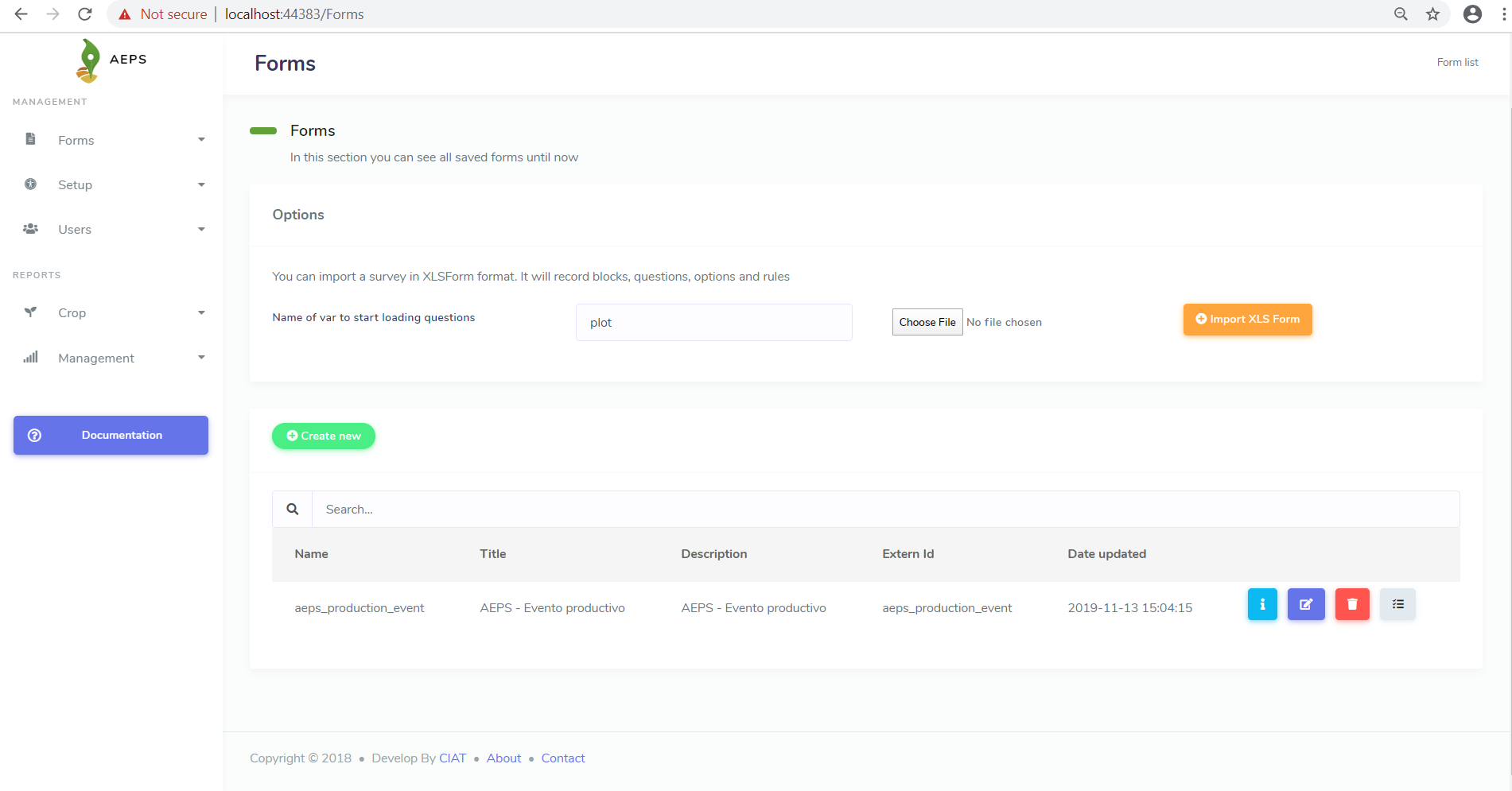
In order to import a new form into the platform, you should be known what is the variable, which will be used like a start point to import. The start point (variable’s name) is a reference where the dynamics questions are contained. By default, the start point is called plot. You can see more collect section
Once you have typed the variable’s name, you have to choose the XLS file from your pc, then you just have press in the button Import XLS Form, so the application will start to create blocks, questions, rules and configure the new form. The global settings like name, title and description will be taken from the settings sheet of the XLS file.
Tip
Import forms option is just able to import data in one language, so you shouldn’t have language labels in the definitions of the questions inside of XLS file.
Manage forms
You are able to see details, add, edit and delete forms, also you can set the questions’ blocks for each form. In case that you have many forms in your instance, you can search inside of the list just typing in the search box. To create a new form from scratch, you just need press in the button Create new. In front of each form in the list, you can see the options: Details, Edit, Delete and Set Blocks.
Details form
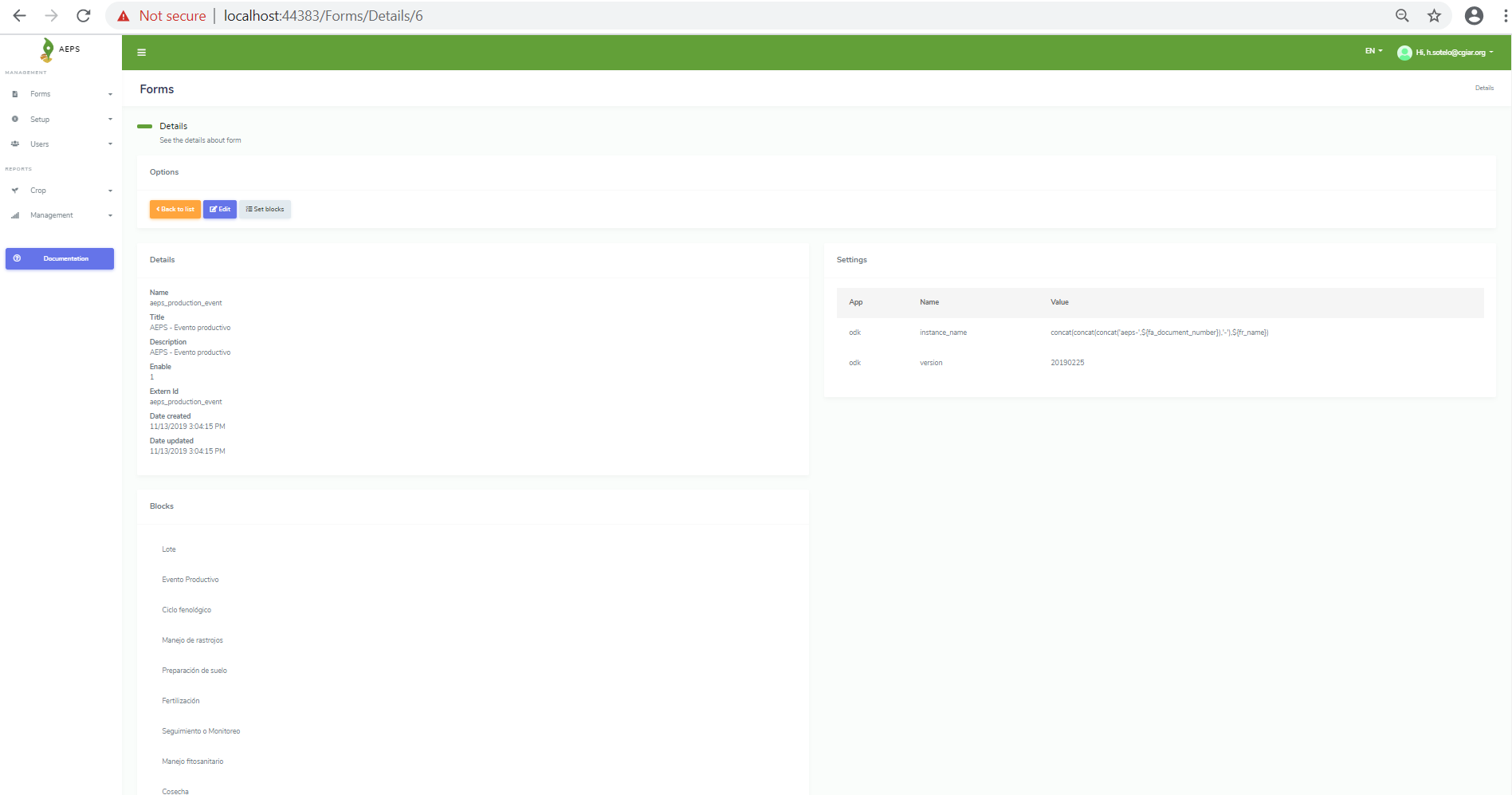
Let’s see what information is stored into of a form.
Field |
Description |
|---|---|
Name |
machine name of the form |
Title |
form title |
Description |
short description of the form |
Enable |
it sets if the form is able (1) or disable (0) |
Extern Id |
external identificator |
Date created |
date when it was created |
Date updated |
date when it was updated |
Blocks |
It is the list of blocks associated to this form |
Settings |
Extra settings, they are used to get from settings sheet in XLS file |
Set blocks
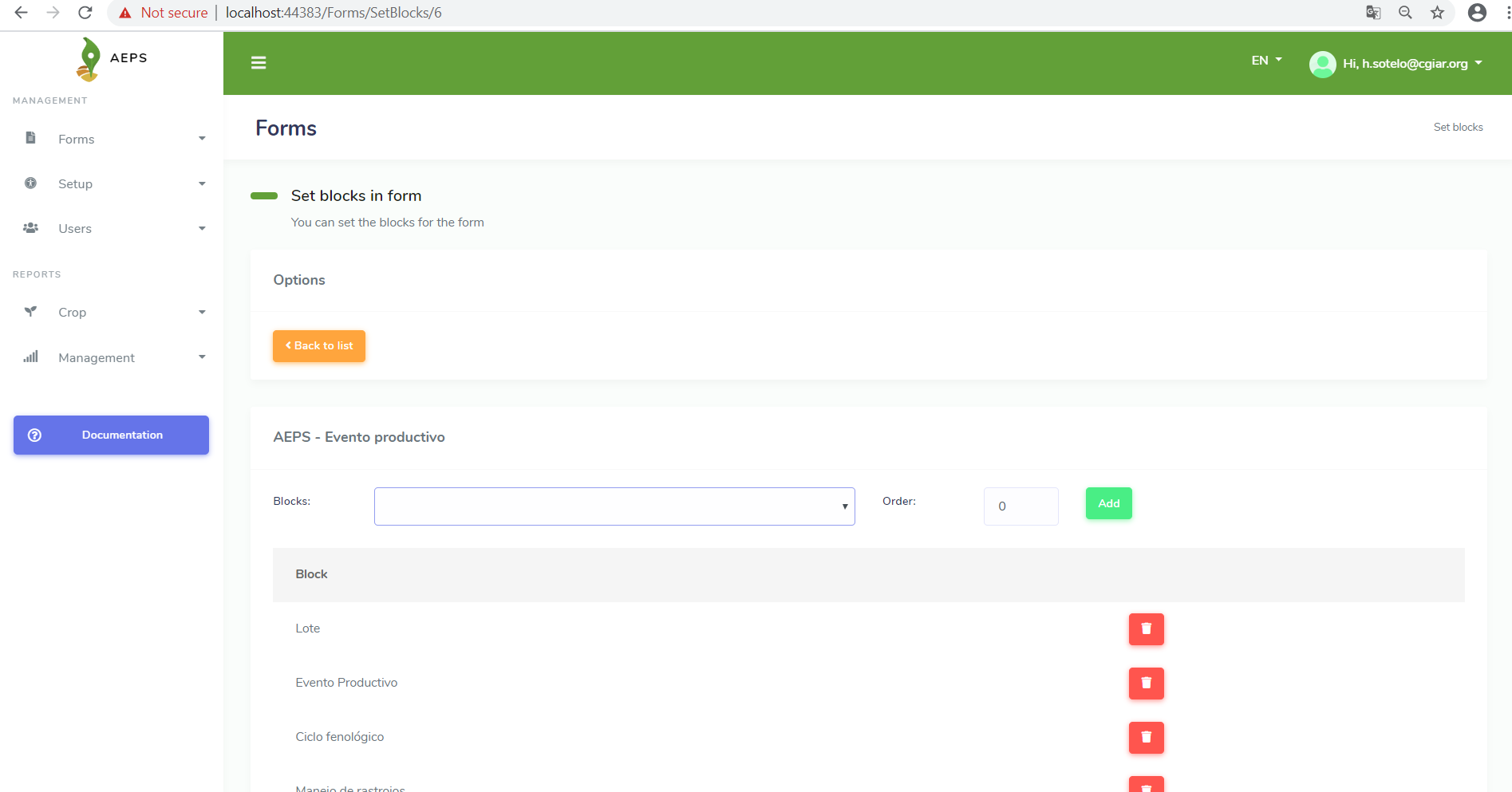
Once you had selected the form, you can add new blocks to this form. You should select the block that you want to add and set the order, then press in the button Add. The order field is just to set in which order it should be listed, it is a number. The list that you can see below are the blocks which are part of this form. At the same time you can remove blocks from a form, you just need to press in the icon Delete in front of each block’s name.
Manage blocks
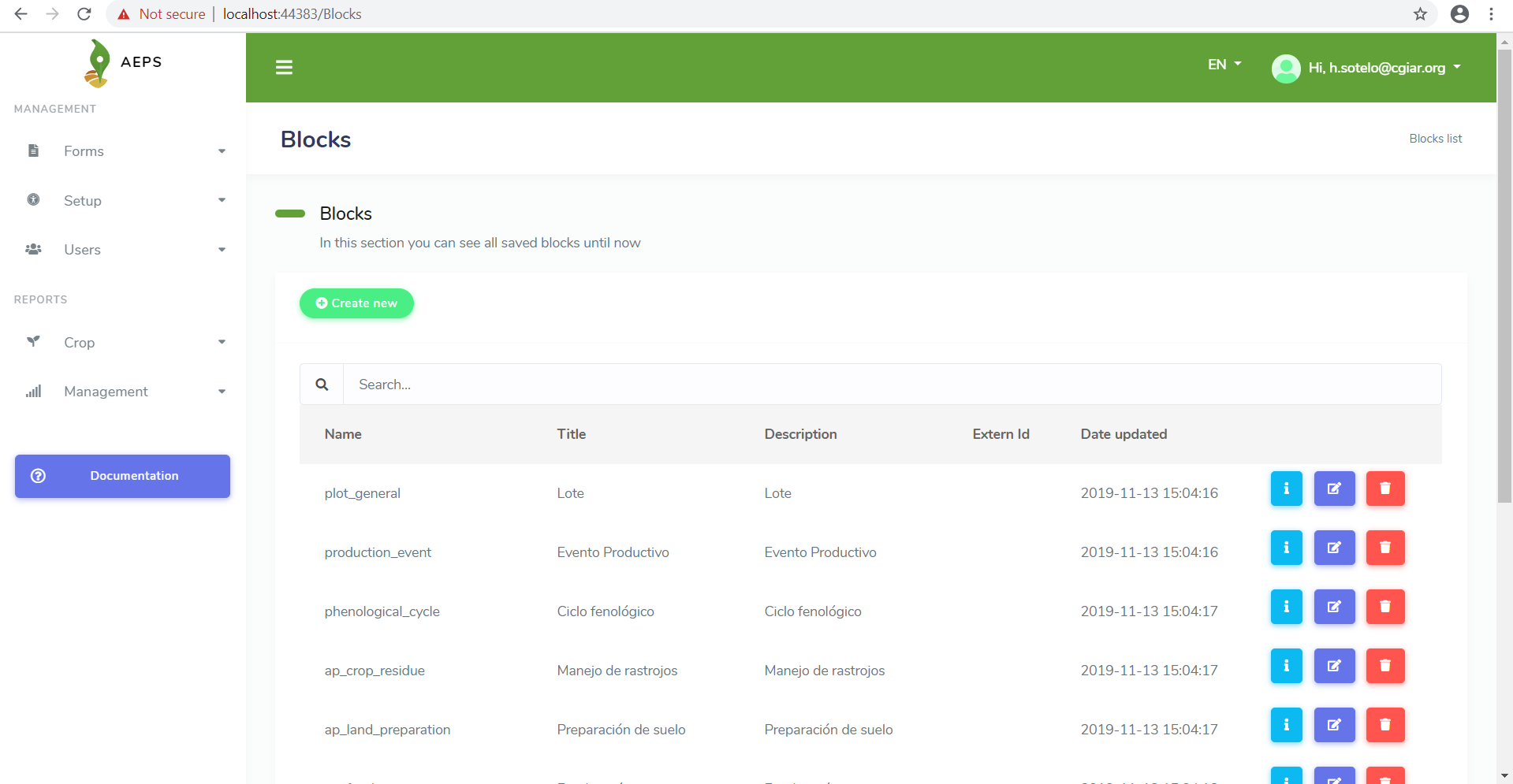
A block is a set of question which can be added to a form. You are able to see details, add, edit and delete blocks.
Details block
Let’s see what information is stored inside of a block.
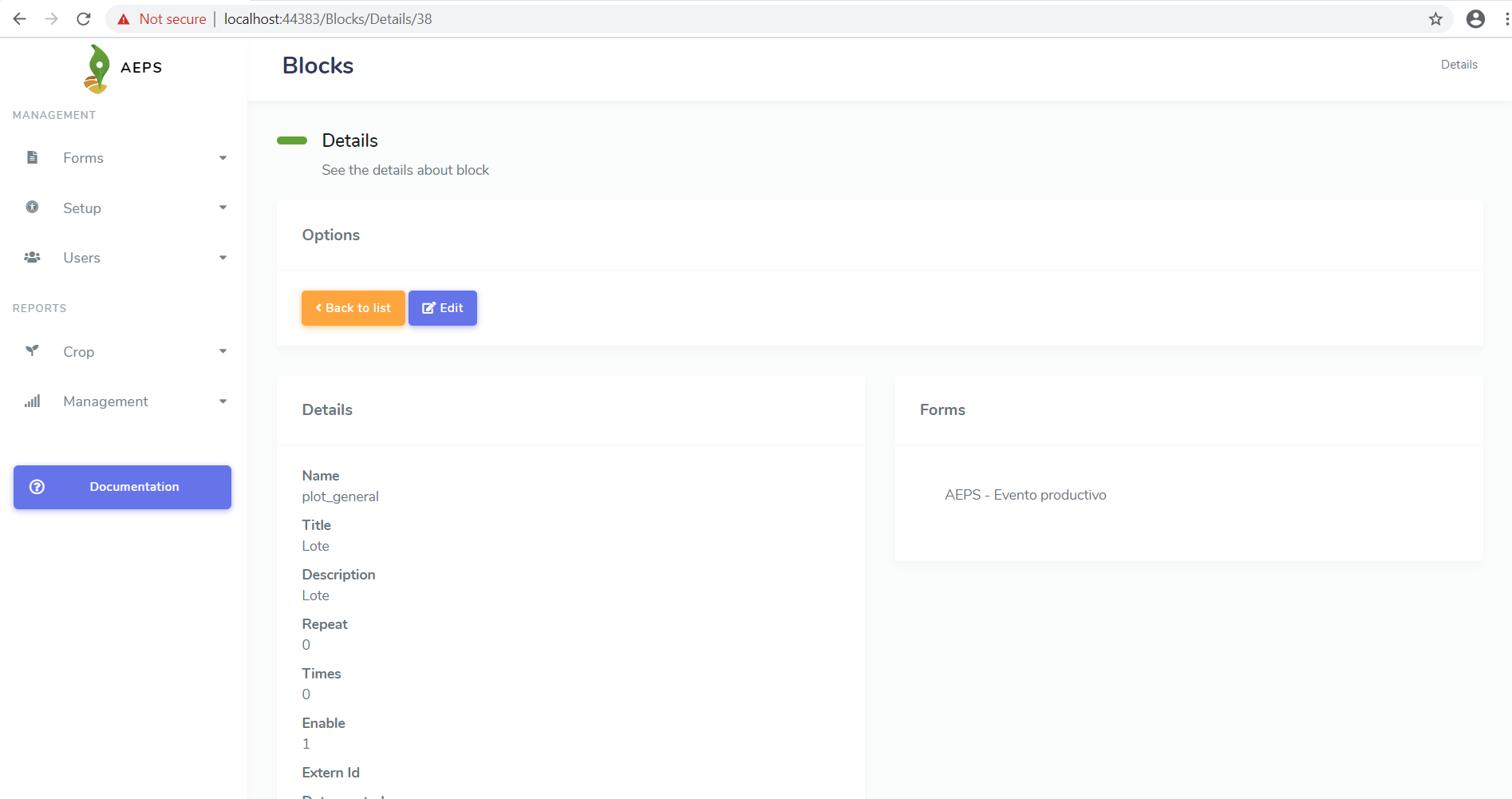
Field |
Description |
|---|---|
Name |
machine name of the section |
Title |
block title |
Description |
short description of the block |
Repeat |
it sets if the block can repeat again |
Times |
it sets the amount times that a block can repeat |
Enable |
it sets if the form is able (1) or disable (0) |
Extern Id |
external identificator |
Date created |
date when it was created |
Date updated |
date when it was updated |
Forms |
It is the list of forms associated to this block |
Manage questions
A question can or cannot answered by users. All questions have to be related with just one block. The questions have a type of question, it determines how is the way how it will be displayed to users. The questions, which are selected from a list, have a extra configuration called options. You are able to see details, add, edit and delete blocks.
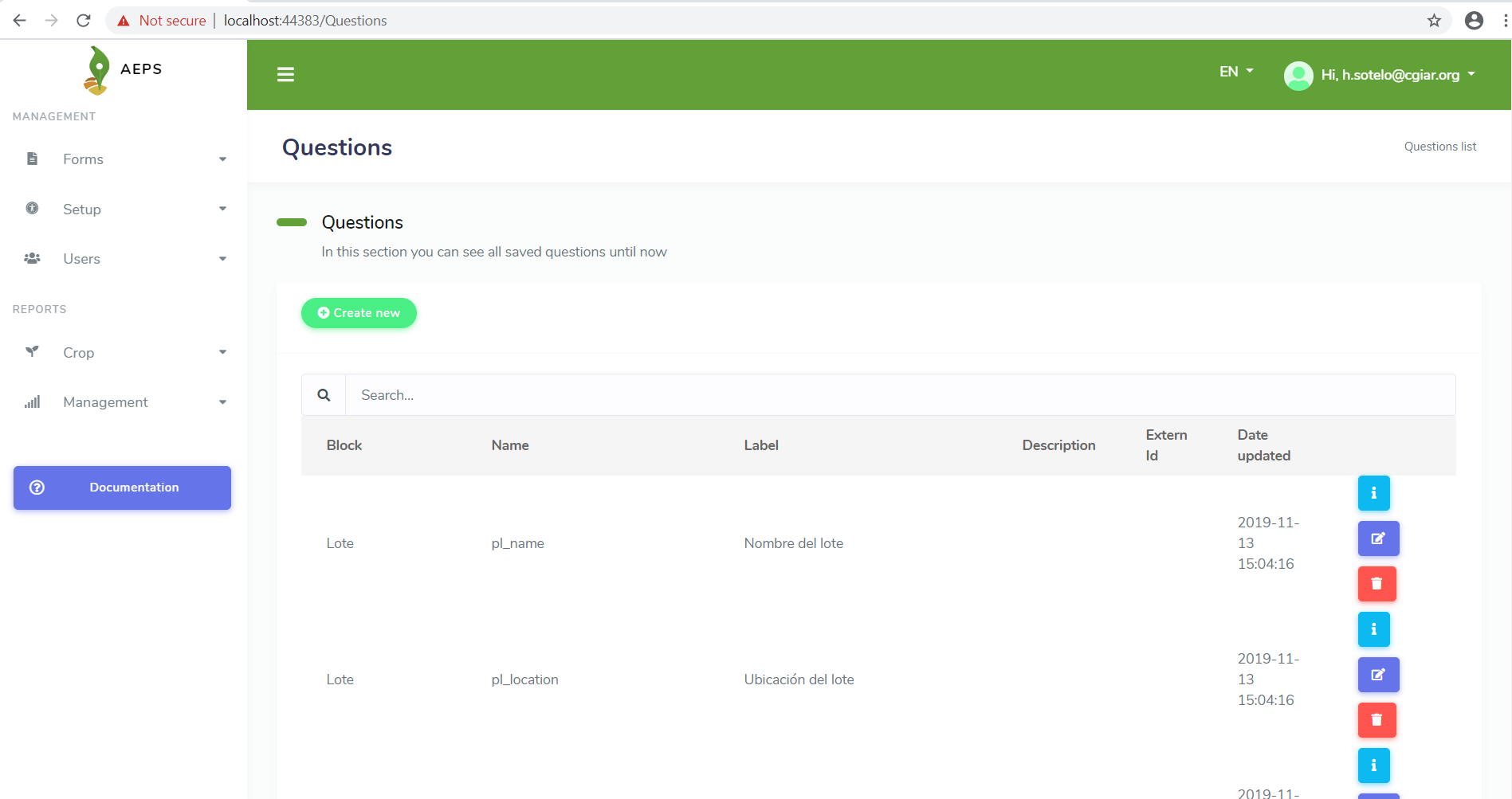
Details question
Let’s see what information is stored inside of a question.
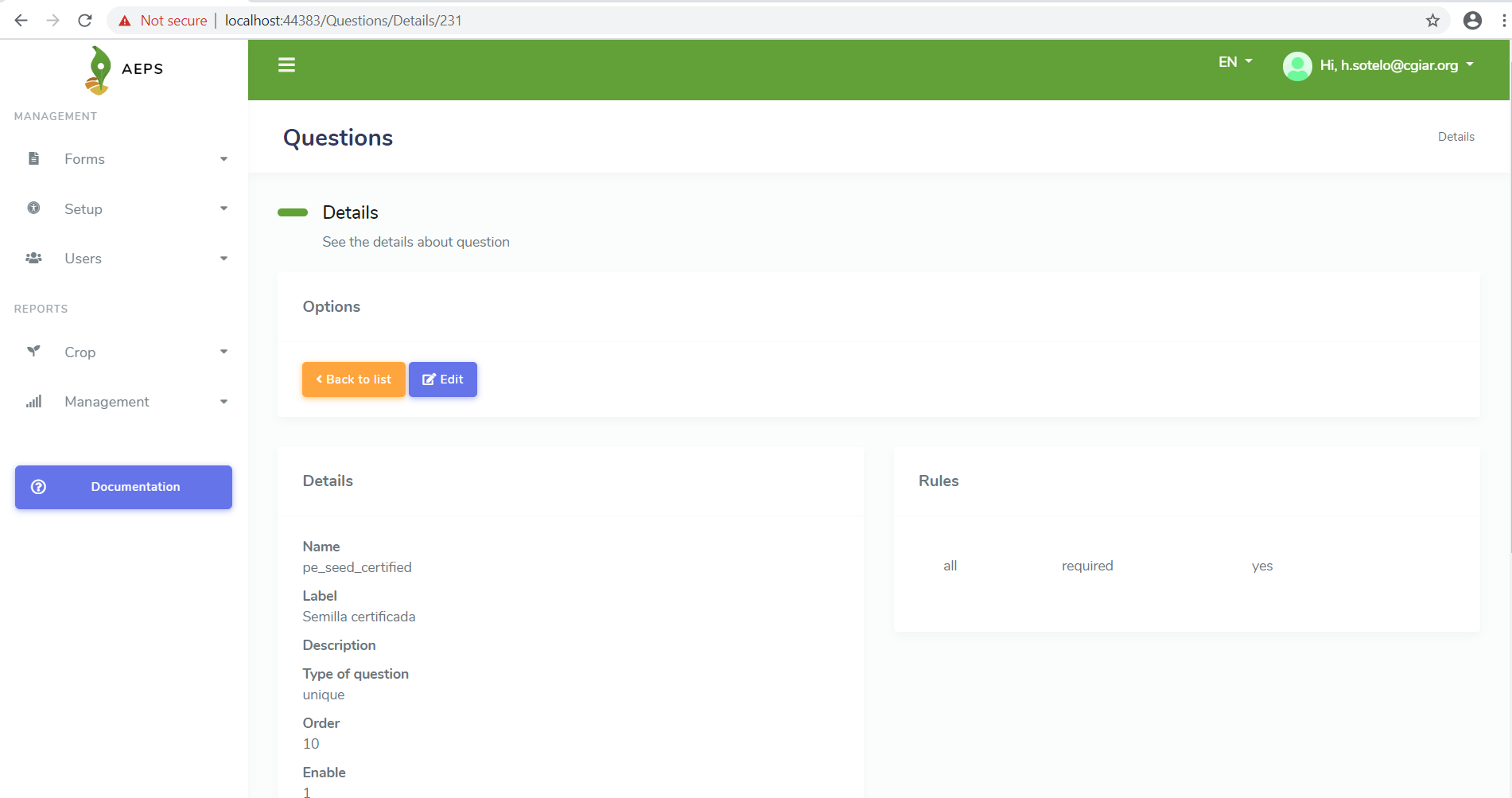
Field |
Description |
|---|---|
Block |
block |
Name |
machine name of the question |
Label |
label for question |
Description |
short description of the question |
Type |
it sets the type of answer that it will hope gets in the question [string, int, double, bool, date, time, datetime, unique, multiple, geopoint, file] |
Order |
It sets the order of the question in each block. between the value is higher will be lower |
Enable |
it sets if the form is able (1) or disable (0) |
Extern Id |
external identificator |
Date created |
date when it was created |
Date updated |
date when it was updated |
Rules |
It is the list of all rules associated to this question |
Options
Options are just useable for questions which have unique or multiple type. All options just can be associated to one question. Let’s see what information is stored inside of an option.
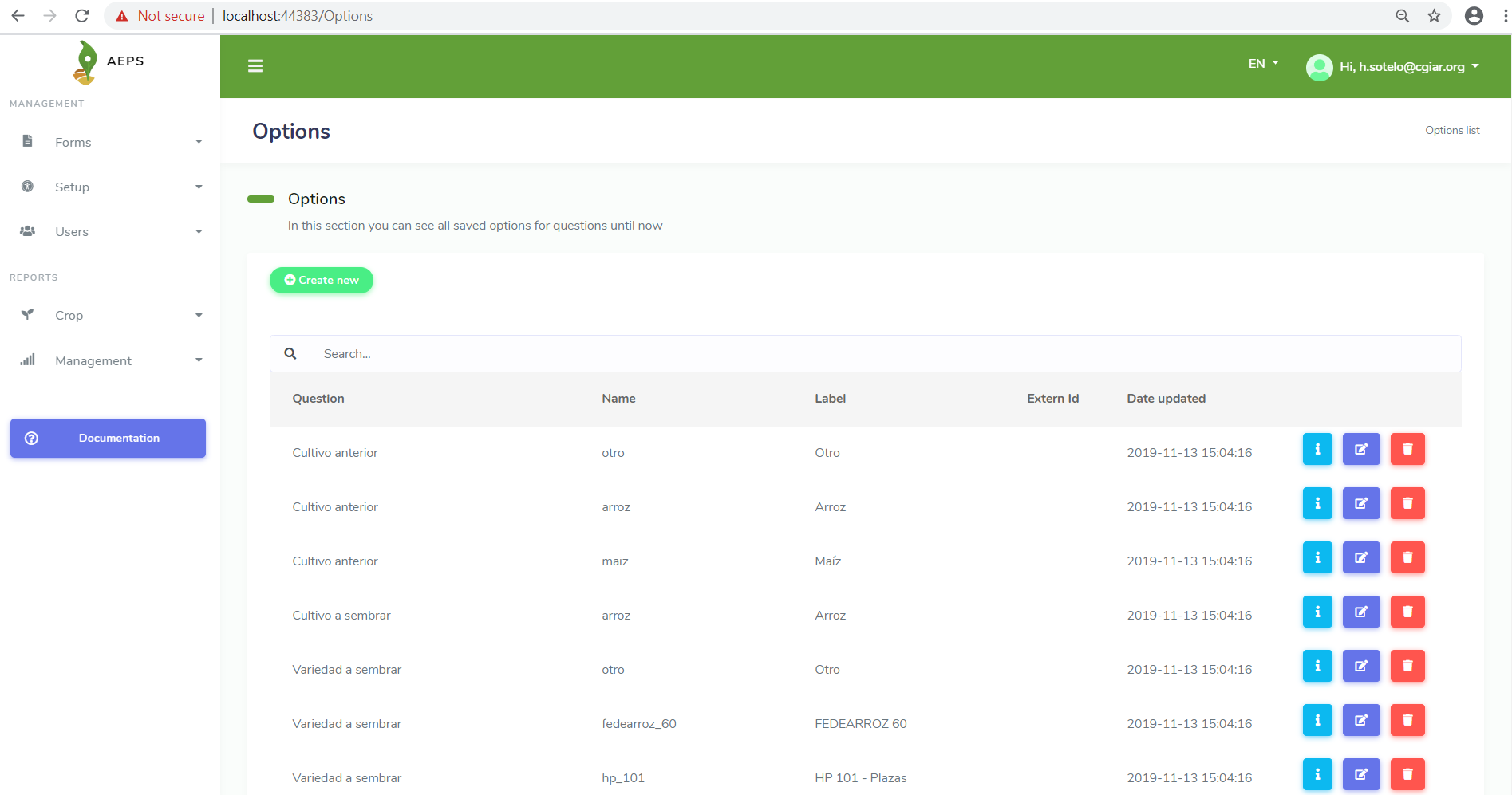
Field |
Description |
|---|---|
Question |
question |
Name |
machine name of the option |
Label |
label for option |
Enable |
it sets if the form is able (1) or disable (0) |
Extern Id |
external identificator |
Date created |
date when it was created |
Date updated |
date when it was updated |
Rules
Rules are a set of statement that will be validate by other apps. A rule can be useable for a specific app or many of them. Each question is just associated to one question. Let’s see what information is stored inside of a rule.
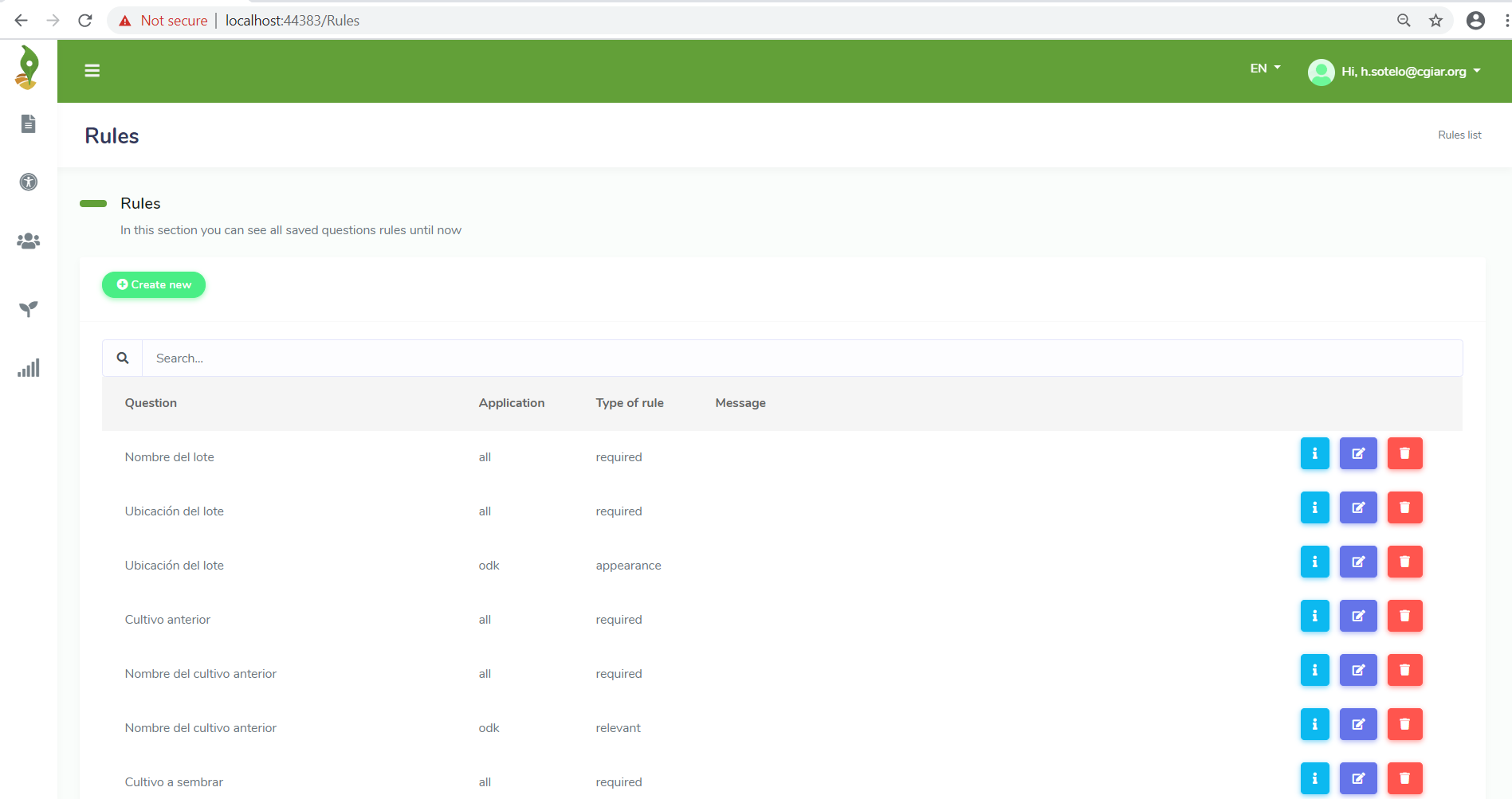
Field |
Description |
|---|---|
Question |
question |
Application |
the application which is gonna be validated: all, odk, pdi |
Type of rule |
it sets which is kind of validation to check [required, constraint, relevant, appearance, calculation, choice_filter] |
Message |
this message will show when the rule will be broken |
Rule |
rule in terms of application |